Search Results Page
Search Results
Overview
After selecting a category from the Search Results Overview page, you are taken to the Search Results page for that category. This page shows all matching records in detail and gives you powerful tools to filter and narrow down your results.
The page is split into two main areas: a Filters panel on the left, and the Results list on the right.
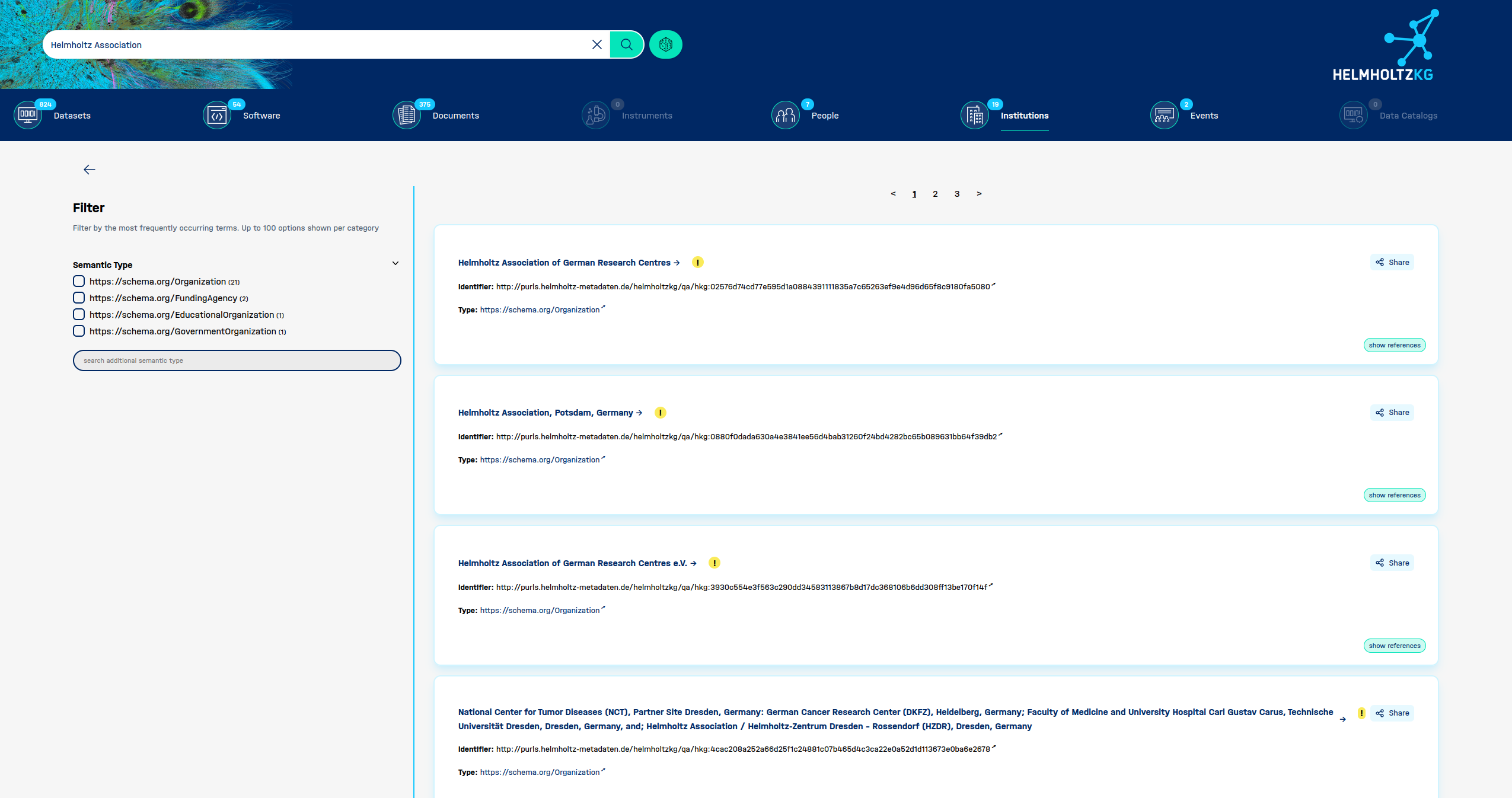
Category Navigation Bar
At the top of the page, just below the search bar, a navigation bar displays all available content categories along with their result counts. The currently selected category is underlined.
- Click any category in the bar to switch to that category's results without losing your search term.
- Categories with zero results are visually dimmed.

Results List
The right-hand side of the page shows individual result cards. Each card contains detailed metadata about a record, which varies slightly depending on the category but typically includes:
| Field | Description |
|---|---|
| Title | The name of the record, shown as a clickable link that takes you to the full detail page |
| Identifier | The primary unique URI for the record in the Knowledge Graph |
| Alternate Identifier | Additional IDs from external systems (e.g. DOI, Wikidata, ISNI, fundref) |
| Type | The semantic type of the record, linked to schema.org definitions |
| Provider / Publisher | The organisation that provided or published the record |
| Creators / Authors / Contributors | People associated with the record |
| Date Published | When the record was published |
| Version | The version of the resource, where applicable |
| License | The license under which the resource is available |
| Keywords | Topic tags associated with the record |
| Description | A summary of the record. Long descriptions can be expanded using show more |
| URL | A direct link to the resource |
| Affiliation | For People records, the institution the person is affiliated with |
| Organization Hierarchy | For Institution records, the parent and child organisations |
and more related fields.
Sharing a Result
Every result card has a Share button in the top-right corner. Click this to copy or share a link directly to that record.
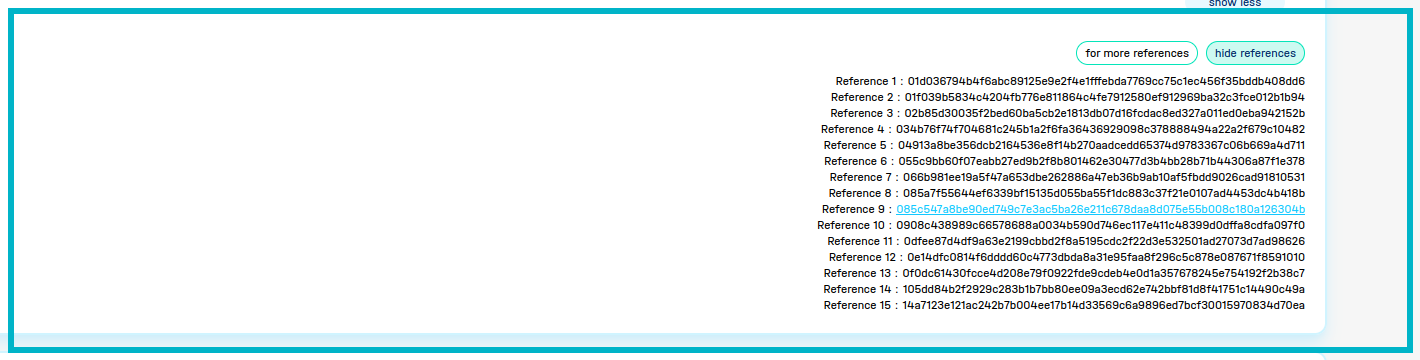
Viewing References
At the bottom of each result card, a show references button reveals the source references used to compile that record's data. Click hide references to collapse them again.
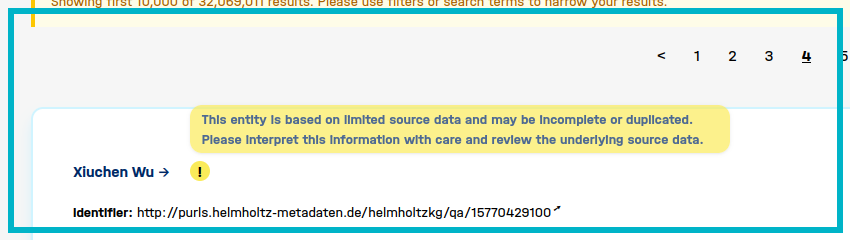
⚠️ Data Quality Warning
Some records display a yellow warning badge (!) next to their title. This indicates that the record is based on limited source data and may be incomplete or duplicated.
This entity is based on limited source data and may be incomplete or duplicated. Please interpret this information with care and review the underlying source data.
If you see this badge, treat the record's information with caution and follow the source links to verify the data.
Large Result Sets
If your search returns a very large number of results, the page will display a warning banner:
Showing first 10,000 of 32,069,011 results. Please use filters or search terms to narrow your results.
In this case, use the Filters panel (described below) or refine your search term to bring the result set to a more manageable size.

Pagination
Results are displayed across multiple pages. The pagination control appears at the top of the results list.
- Use the < > arrows to move one page at a time.
- Click a specific page number to jump directly to it.
- For large result sets, the control shows the first few pages, an ellipsis (…), and the last few pages.
Filters Panel
The left-hand panel provides filters to narrow your results. Filters are based on the most frequently occurring terms in the current result set, with up to 100 options shown per category.
Range-based Date Filters
Date range filters appear as interactive bar charts showing the distribution of records over time. Below each chart is a date range slider that you can drag to restrict results to a specific time window.
- The chart gives a visual overview of when records were created or published.
- Drag the left or right handle of the slider to set your start and end dates.
- The selected date range is displayed below the chart.
- Click clear to reset the date filter.
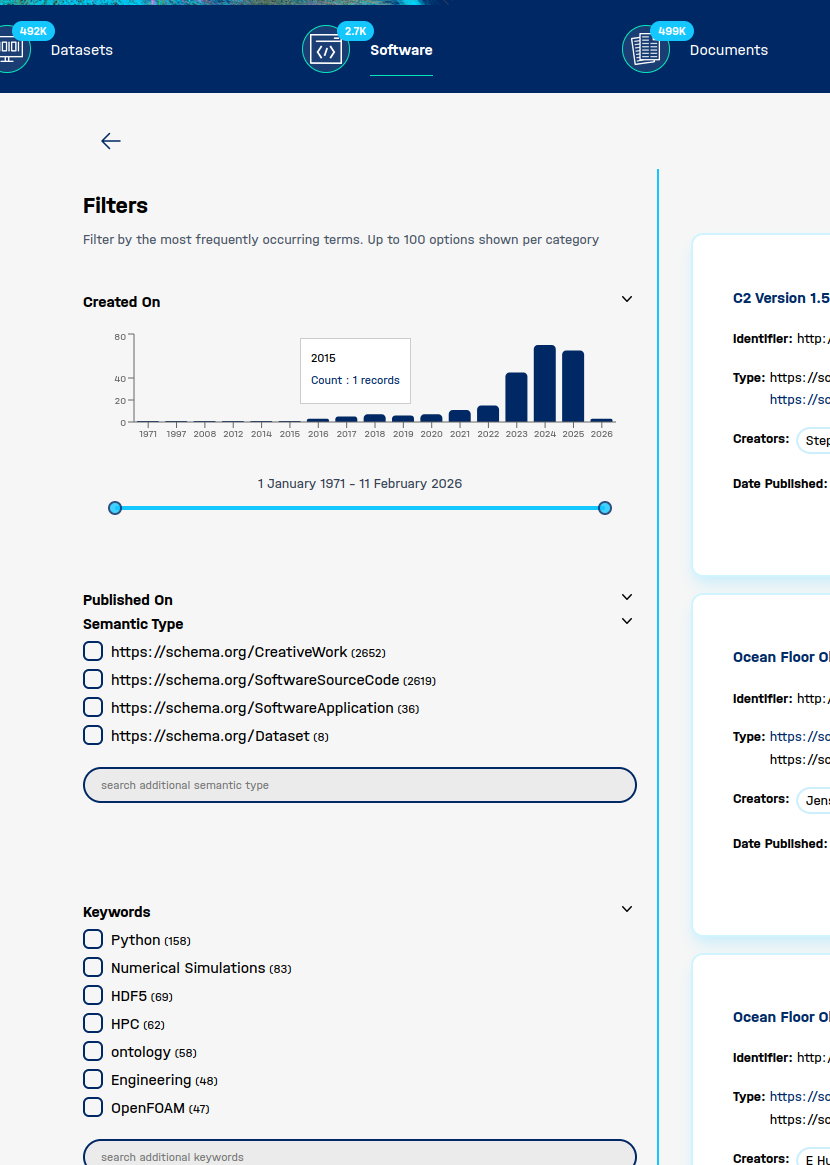
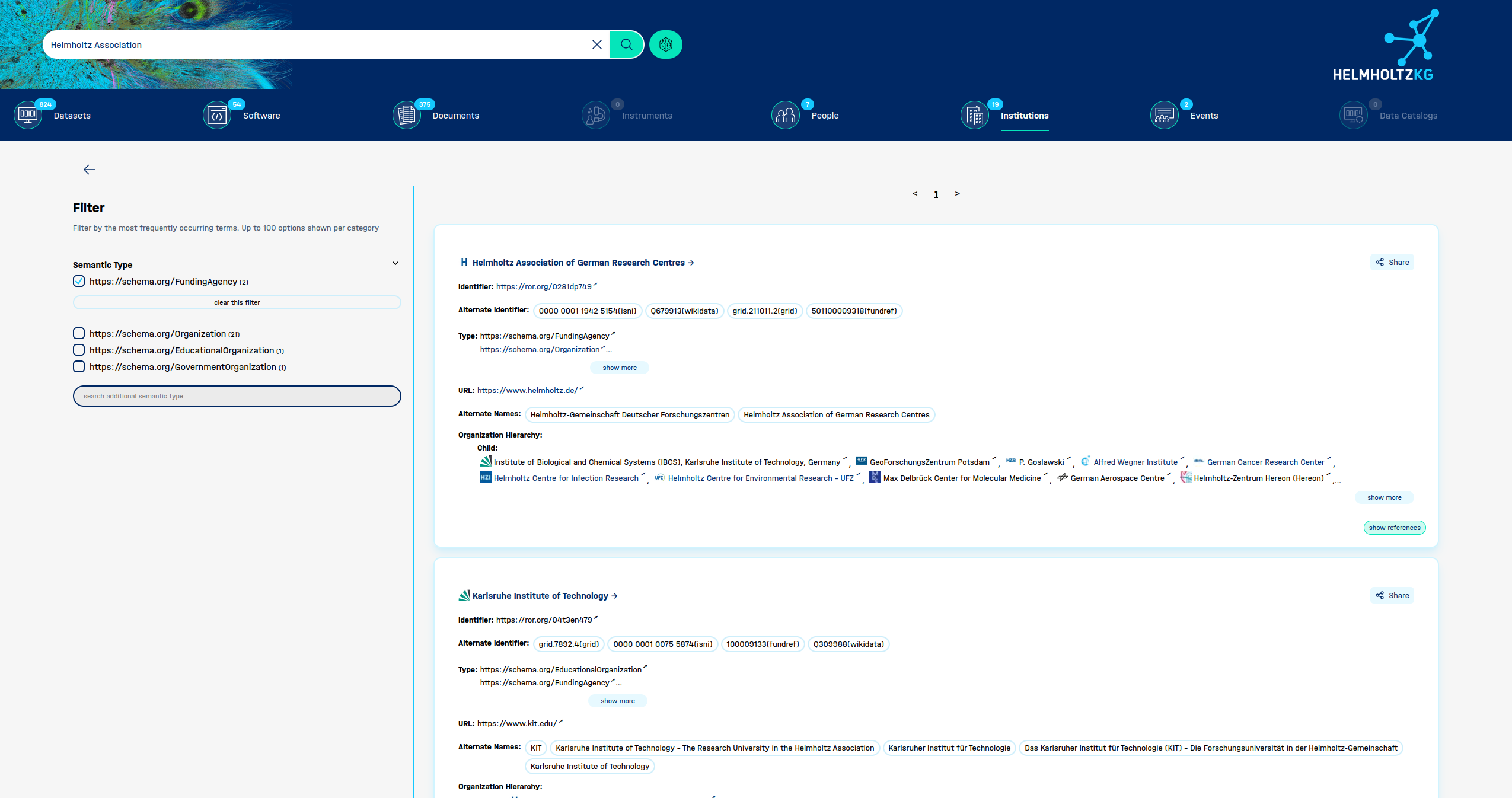
Checkbox Filters
- Tick a checkbox to include that type in your results.
- You can select multiple types — see the AND/OR behaviour described below.
- Use the search additional filter text box to search for a filter value not shown in the list.
- Click clear this filter to deselect all selected types.
Combining Filters — AND vs. OR
When you select multiple values within the same filter category, the results shown depend on the filter mode:
AND filtering — results must match all selected values simultaneously. This narrows your results more strictly.
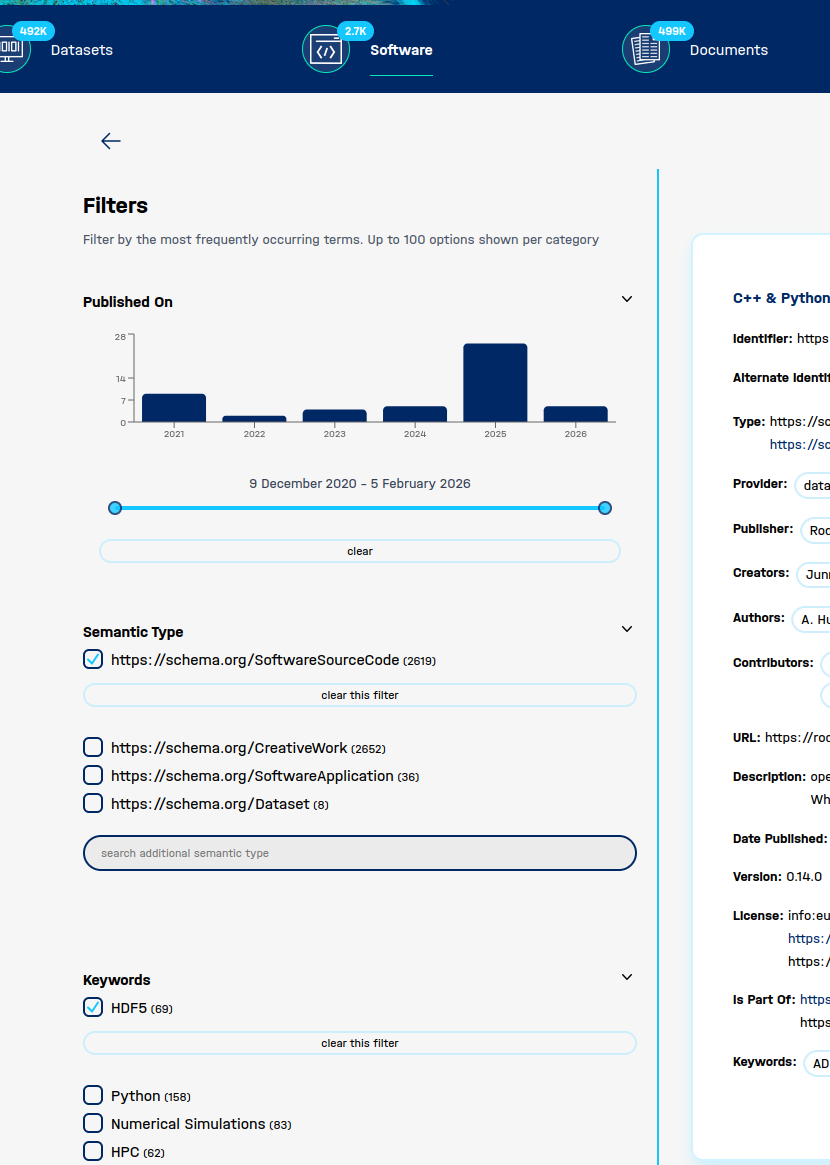
OR filtering — results match any of the selected values. This broadens your results to include records matching at least one of the chosen options.
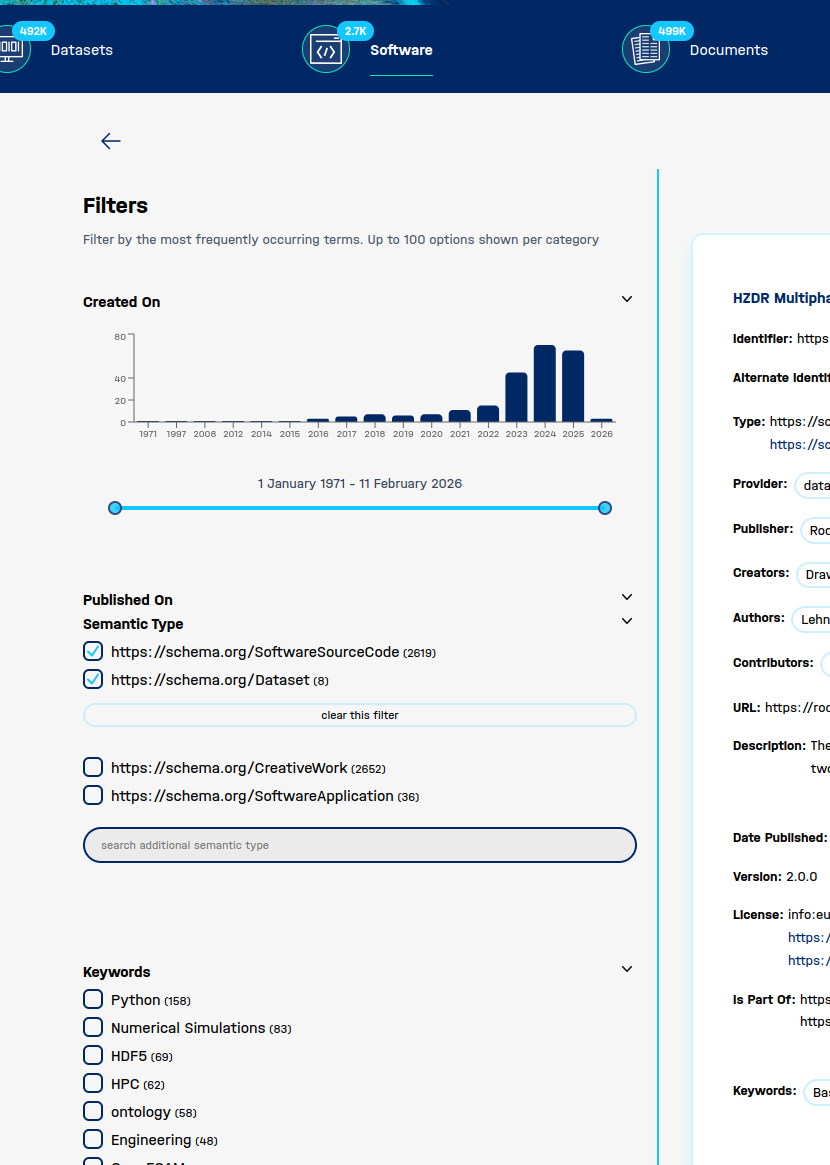
💡 Tip: Use AND filtering when you need highly specific results. Use OR filtering when you want to cast a wider net across related types or topics.
Back Navigation
A ← back arrow in the top-left of the page (below the category bar) takes you back to the Search Results Overview page, where you can select a different category.
Getting the Most Out of the Search Results Page
- Start with the category bar — make sure you are in the right category before applying filters.
- Check the result count — if you have tens of thousands of results, apply filters before browsing.
- Use date filters to focus on recently published or created records.
- Combine Semantic Type and Keyword filters to pinpoint exactly the kind of resource you need.
- Watch for the ⚠️ warning badge — these records may need additional verification.
- Use show references to trace where a record's data came from.
- Use the Share button to save or send a link to a specific result.
